
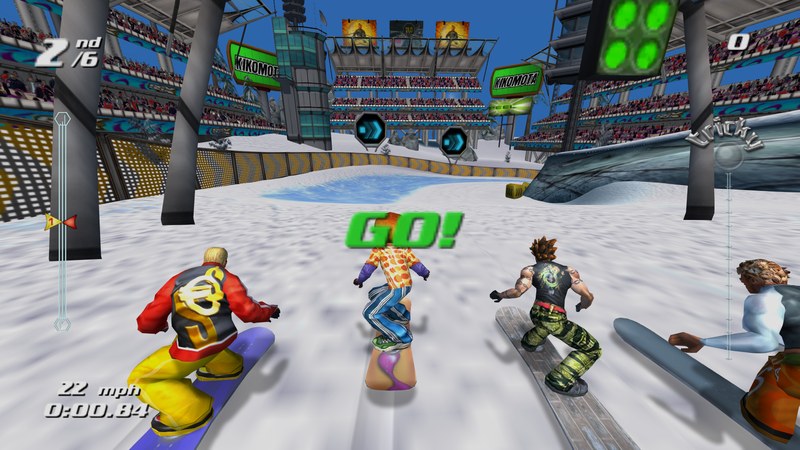
OpenTricky 0.1.1 is coming soon. Until then, the download is the v0.1.0-unstable test build, and the guides on this site already describe 0.1.1.
FAQ
- Can I play SSX Tricky on PC?
- Yes, with OpenTricky and your own copy of the game: a disc image of SSX Tricky for the original Xbox, USA release. OpenTricky runs it natively on Windows 10 and 11, with a launcher, any resolution, ultrawide and high frame rates. See the install guide.
- Was there ever an official PC version of SSX Tricky?
- No. SSX Tricky came out in 2001 on PlayStation 2, GameCube and Xbox, and later on Game Boy Advance. OpenTricky is an unofficial fan port, built from the Xbox version.
- Is this an emulator?
- No. The game's code is translated once into a normal Windows program. Only the console's graphics, sound and input chips are reimplemented, on Direct3D 11, XAudio2 and XInput.
- Why do I need my own disc image?
- The game isn't ours to share: its disc image, code, music and videos are not distributed here. The launcher reads your disc image each time you play and never changes it.
- Which disc image works?
- SSX Tricky for the original Xbox, USA release. Both an extract-xiso image (
.xiso) and a full disc dump (.iso) work. - Can I use the PS2 or GameCube version?
- No. The port is built from the Xbox program. The controls follow the PS2 layout, though.
- Does it run on Linux or the Steam Deck?
- It hasn't been tested yet. It is a plain Direct3D 11 Windows program, the launcher can be used with a controller, and a Steam Deck preset is included (1280×800, 60 FPS), so Proton may work. Reports are welcome in #bug-reports.
- Are the high frame rates real?
- The game logic runs at 60 steps per second, as on the Xbox, so the physics, the computer riders and the replays behave the same. The camera and the riders are interpolated between those steps. Motion is smooth at 120, 144, 240 FPS and above.
- Which controllers work?
- Xbox-style (XInput) controllers and the keyboard. Other controllers, PlayStation ones included, can go through Steam Input or DS4Windows.
- How do I update?
- The launcher tells you when a new version is out and can install it for you, after checking the download. See Updating. You can turn it off: Check for updates → Never.
- Does the launcher send anything?
- To check for updates, it asks GitHub's public API which releases exist. Nothing else is sent: crash reports and bug report zips stay on your PC until you attach them yourself. With Check for updates → Never, it makes no request at all.
- Does this website track me?
- It counts visits with Cloudflare Web Analytics, which uses no cookies or local storage and collects no personal data. The rider counter at the bottom adds one when you arrive and stores nothing about you; your browser tab only remembers that you were counted, so a reload doesn't count twice. There are no ads and no other trackers.
- Where are my saves?
- In
Documents\My Games\SSX Tricky\Saves, or inSavesnext to the game when you useportable.txt(you can pick another folder in Settings → Game). Before a save is overwritten, the game keeps a copy of the previous one in aUDATA-backupfolder, in the same place. - Where are my settings?
- In
settings.ini, next toOpenTricky.exe, or inDocuments\My Games\SSX Tricky\if the game's folder can't be written. - Is online multiplayer planned?
- It is being explored, but it isn't part of this release.
Help & bug reports
- PLAY is greyed out.
- The launcher hasn't found a good disc image yet. It says why: No disc image yet, Disc image not found (the file moved), or Not SSX Tricky (USA) for Xbox. Choose your
.isoor.xisoagain. - Windows says the program isn't safe.
- Windows SmartScreen warns about programs that aren't code-signed. If you trust the download, choose More info → Run anyway.
- The game closed on an error.
- The launcher shows what happened and can Prepare a bug report: a zip on your Desktop, without your disc image or your saves. Nothing is sent: attach it to your report yourself.
Reporting a bug
Please open an issue on GitHub, or post in #bug-reports on the Discord, and include:
- the version: shown in the launcher (Settings → Advanced → About OpenTricky) and on the first line of
SSX Tricky.log; - your settings: resolution, screen shape, frame rate limit and the extras you use;
- your graphics card and CPU;
- the log file
SSX Tricky.log, next tosettings.ini(Log file is on by default; Settings → Advanced → Open logs opens its folder); - after a crash or a freeze: the report folder the game saved in
CrashReportsnext to the game, or the zip made by Prepare a bug report; - an F12 screenshot if something looks wrong, and where in the game it happened.
Questions, screenshots or just want to chat? Join the OpenTricky Discord.